🖥️ Mac Mini Home Server — The Complete Guide
Episode 1/10 — Why Mac Mini?
Home Server Hardware Selection Guide
When you decide to start a home server, the very first hurdle is picking the hardware. Should you grab a Synology NAS? Start small with a Raspberry Pi? Hunt for a used mini PC on eBay? There are so many options that it actually becomes harder to decide. In this post, I'll walk you through why the Mac Mini M4 (released in late 2024) has been getting so much attention in the home lab community, and how it honestly stacks up against the alternatives. Spoiler: it's not the right choice for everyone, but under certain conditions, it's the best option out there right now.
📑 Table of Contents
📌 This post is for you if...
- You want to start a home server / home lab but feel overwhelmed by hardware choices
- You're torn between buying a NAS or a Mac Mini
- You're interested in Docker-based self-hosting
- You want a 24/7 server that's quiet and power-efficient
1. Why the Mac Mini Is Trending as a Home Server
When the M4-powered Mac Mini launched in October 2024, the home lab community went wild. Searches for "Mac Mini home server" exploded on Reddit, Hacker News, and YouTube. Here are the three main reasons.
🔋 Reason 1: Ridiculously Low Power Draw
The M4 Mac Mini draws only 3–4W at idle (measured by Jeff Geerling, without 10Gb Ethernet). Even streaming 4K via Plex stays around 7W, and full CPU load tops out at roughly 40–45W. In HPL benchmarks, it achieved 283 Gflops at 42W — that's 6.74 Gflops/W, a 32% improvement over the previous ARM efficiency champion.
🤫 Reason 2: Virtually Silent
There's a fan inside, but under normal server workloads, it barely spins. You can put it inside a TV cabinet or on your desk and hear absolutely nothing. "Zero presence even when running 24/7" — that's the common feedback. If you don't have a dedicated server room (most of us don't), this is a massive plus.
📦 Reason 3: Tiny Form Factor + Ready to Go
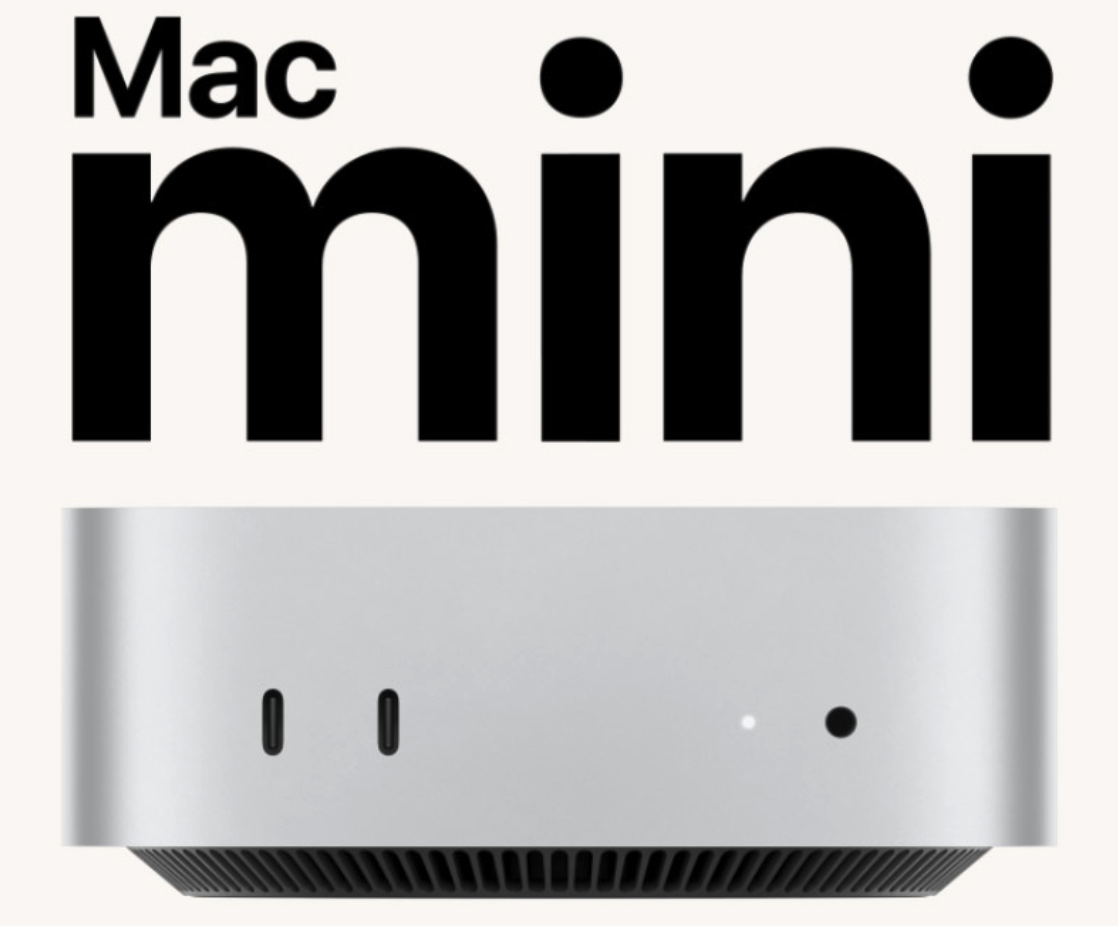
12.7cm × 12.7cm × 5cm, weighing about 670g (M4 model) — it literally fits in your palm. Plug in the power cable and you're good to go. macOS comes with SSH (Remote Login), file sharing (SMB/AFP), Time Machine server, and content caching all built in.
2. The 4-Way Showdown — Mac Mini vs NAS vs Raspberry Pi vs Mini PC
Let's compare the main home server hardware options objectively. The right question isn't "which is the best?" — it's "which one fits MY needs?"
※ Prices reflect Korean retail as of March 2026. International pricing may differ — check your local market.
| Spec | Mac Mini M4 | Synology DS224+ | Raspberry Pi 5 | Used HP EliteDesk 800 G5 Mini |
|---|---|---|---|---|
| 💰 Price | ~$500 USD M4/16GB/256GB |
~$300 USD Unit only, HDDs extra |
~$80–120 USD (8GB) Full kit ~$180 |
~$100–170 USD i5-9th/16GB/256GB |
| 🧠 CPU | Apple M4 10-core (4P+6E), 4.4GHz |
Intel Celeron J4125 4-core, 2.0–2.7GHz |
BCM2712 Cortex-A76 4-core, 2.4GHz |
Intel Core i5-9500T 6-core, 2.2–3.7GHz |
| 💾 RAM | 16GB LPDDR5X Up to 32GB (M4 Pro: 64GB) |
2GB DDR4 Up to 6GB (SO-DIMM add-on) |
1/2/4/8/16GB LPDDR4X, non-upgradable |
8–16GB DDR4 Up to 32–64GB (slot swap) |
| 🔋 Idle Power | 3–4W | 15–20W (with HDDs spinning) |
3–5W (varies by model/load) |
7–15W |
| 🔊 Noise | Virtually silent | HDD noise present | Fanless (silent) | Small fan noise |
| 🐳 Docker | Needs OrbStack, etc. (Linux VM-based) |
DSM Container Manager ⚠️ No AVX support |
Native Linux (full support) |
Native Linux (full support) |
| 🏗️ Architecture | ARM64 | x86_64 | ARM64 | x86_64 |
| 📁 Storage | Internal NVMe SSD 256GB–8TB |
3.5" SATA bays ×2 (RAID 0/1/JBOD/SHR) |
microSD boot NVMe HAT expandable |
Internal M.2/SATA SSD 256GB–2TB |
| 🌐 Network | 1GbE standard (10GbE option available) |
1GbE × 2 | 1GbE × 1 + Wi-Fi 5 (ac) |
1GbE × 1 |
| 🎯 Best For | Docker + LLM + Dev server |
File server + Backup + RAID |
Learning + IoT + Lightweight services |
Budget Docker server |
💡 Key Takeaways
• If file storage and backup are your main goals → Synology NAS is still the winner. Popping 3.5" HDDs into drive bays with RAID/SHR is something the Mac Mini simply can't replicate.
• If you want to run lots of Docker services → Mac Mini or a used mini PC is the way to go. The DS224+'s 2GB RAM hits its ceiling after just a few containers, and the J4125 CPU lacks AVX support — meaning some Docker images (certain databases, AI tools) won't even start.
• If budget is king → Used mini PCs (HP EliteDesk, Lenovo ThinkCentre, etc.) are unbeatable. For $100–170, you get an i5/16GB/256GB x86 Docker server with zero ARM compatibility headaches.
• If you need the Apple ecosystem + ultra-low power + high performance trifecta → Mac Mini is the only game in town.
💡 Raspberry Pi 5 now comes in 16GB! A 16GB model based on the D0 stepping chip launched in January 2025. It's priced at roughly $120–145 internationally, with the same board size and performance as the 8GB — just more RAM. Keep in mind there's no built-in storage (microSD or NVMe HAT required), and you'll need a dedicated 5V/5A (27W) power adapter.
3. M4 vs M4 Pro — Which Model Should You Buy?
Once you've decided on a Mac Mini, the next question is M4 or M4 Pro. The short answer: for most home server use cases, the base M4 is more than enough.
※ Based on Apple official pricing (March 2026). Prices vary by region.
| Spec | M4 (Base) | M4 Pro (12-core) |
|---|---|---|
| CPU | 10-core (4P + 6E) 4.4GHz |
12-core (8P + 4E) 4.5GHz |
| GPU | 10-core | 16-core |
| Neural Engine | 16-core | 16-core |
| Base RAM | 16GB LPDDR5X-7500 | 24GB LPDDR5X-8533 |
| Max RAM (CTO) | 32GB | 64GB |
| Base SSD | 256GB | 512GB |
| Max SSD (CTO) | 2TB | 8TB |
| Thunderbolt | TB4 (40Gbps) × 3 | TB5 (120Gbps) × 3 |
| Front Ports | USB-C (10Gbps) × 2 + 3.5mm audio | |
| Rear (Other) | HDMI 2.1, Gigabit Ethernet (10GbE option) | |
| Starting Price | ~$499 USD (16GB/256GB) |
~$1,399 USD (24GB/512GB) |
| Multi-Core Gain | Baseline | ~+38% |
When You Should Consider the M4 Pro
- You plan to run local LLMs — If you want to run large models like Llama 3.3 70B (quantized) through Ollama, you'll need at least 32GB, ideally 48GB+ RAM. The M4's 32GB max is cutting it close.
- Plex/Jellyfin with 2+ simultaneous transcodes — The M4 Pro's extra CPU/GPU cores make a real difference. For a single stream, the base M4 is fine.
- Dual-purpose: dev server + home server — If you're compiling code, running CI/CD, and spinning up dozens of containers at the same time, that +38% multi-core boost matters.
- External storage bandwidth — TB5 (120Gbps) is 3× faster than TB4 (40Gbps). If you plan to use NVMe external enclosures for NAS-like speeds, TB5 is the better choice.
💡 RAM is especially critical on Apple Silicon. The CPU, GPU, and Neural Engine all share the same Unified Memory pool. When RAM runs low, macOS starts swapping to SSD and performance tanks hard. And here's the kicker: you can't upgrade RAM after purchase. Storage can be solved with external drives, but RAM is locked in forever. If your budget allows, always go bigger on RAM.
4. Recommended Specs by Use Case
🟢 Light Home Server — Docker + File Sharing + Media
M4 / 16GB / 256GB + external 1TB SSD
Budget: ~$499 (unit) + ~$70 (SSD) = ~$570 total
Handles under 10 Docker containers, single-stream Plex/Jellyfin, AdGuard Home, Uptime Kuma, and SMB file sharing with room to spare.
🔵 Mid-Tier Home Lab — Many Containers + Dev Environment
M4 / 24GB / 512GB + external 2TB SSD
Budget: ~$899 (unit) + ~$100 (SSD) = ~$1,000 total
Comfortably runs 20+ Docker containers, reverse proxy, monitoring stacks (Grafana + Prometheus), Git server, and small databases.
🟠 Advanced Home Lab — Local LLM + Large-Scale Services
M4 Pro / 48GB (CTO) / 512GB + external 4TB SSD
Budget: ~$1,899 (unit) + ~$170 (SSD) = ~$2,070 total
Capable of running local LLMs via Ollama (70B-class quantized models), RAG pipelines, vector databases, and multiple concurrent services.
⚠️ Watch out for the 256GB model's SSD speed. The base M4 (256GB) has a single NAND chip, while the M4 Pro (512GB) has four. Fewer NAND chips means less parallelism, resulting in slower sequential read/write speeds. If you expect heavy disk I/O for server workloads, go with 512GB or higher. Note: the M4's SSD module is physically removable, and third-party replacement guides are appearing online — but it voids your Apple warranty.
5. Annual Running Cost Breakdown
For a 24/7 server, electricity is your ongoing operating cost. I'll use a mid-range residential rate of about $0.12/kWh (typical for many countries — your rate may vary).
※ Based on idle to light-load scenarios. Actual usage patterns will vary.
| Hardware | Idle Power | Annual Consumption (Idle 24/7) |
Annual Electricity Cost (@$0.12/kWh) |
|---|---|---|---|
| Mac Mini M4 | 3–5W | 26–44 kWh | ~$3–5 |
| Raspberry Pi 5 (8GB) | 3–5W | 26–44 kWh | ~$3–5 |
| Synology DS224+ (with 2 HDDs) |
15–20W | 131–175 kWh | ~$16–21 |
| Used Mini PC (EliteDesk 800 G5) |
7–15W | 61–131 kWh | ~$7–16 |
| Old Desktop PC | 60–100W | 526–876 kWh | ~$63–105 |
The Mac Mini M4 and Raspberry Pi 5 draw nearly identical power at idle. You can run a 24/7 server for less than $5 per year in electricity. Compared to repurposing an old desktop, you could save $60–100 annually.
💡 5-Year TCO (Total Cost of Ownership) Comparison
• Mac Mini M4 (16GB/256GB): $499 + $25 (5yr electricity) = ~$524
• Synology DS224+ + 2 HDDs (4TB×2): $300 + $140 (HDDs) + $90 (5yr electricity) = ~$530
• Used Mini PC (i5/16GB): $130 + $55 (5yr electricity) = ~$185
• Raspberry Pi 5 Kit (8GB): $180 + $25 (5yr electricity) = ~$205
On pure bang-for-buck, it goes: used mini PC > Pi 5 > NAS > Mac Mini. The Mac Mini is a premium choice — you're paying for the combination of power efficiency, Apple ecosystem integration, silent operation, and Unified Memory-powered LLM performance.
6. Mac Mini Home Server Limitations — Know Before You Start
❌ 1. macOS Sleep Issues
macOS is not a server OS. Leave it at default settings, and your Mac will fall asleep — killing all your services. Even on M4 models, "Software Sleep" and "Maintenance Sleep" issues have been widely reported on MacRumors forums. You'll need to use the pmset command to fully disable sleep. I'll cover this in detail in Episode 2.
❌ 2. ARM64 Docker Image Compatibility
Most popular Docker images (Nginx, PostgreSQL, MariaDB, Grafana, Portainer, Home Assistant, etc.) support ARM64 (linux/arm64) just fine. However, some niche or legacy images are x86-only (linux/amd64). You can run them through QEMU emulation, but performance drops significantly. If 100% x86 compatibility is non-negotiable, a used mini PC is the safer bet.
❌ 3. No Post-Purchase RAM/SSD Upgrade
RAM is soldered to the board — there's no upgrading after purchase. The SSD module is physically removable, but it's not officially supported by Apple, and swapping it voids your warranty. If large-scale file serving is your primary goal, a NAS with HDD bays is a better fit.
❌ 4. Docker on macOS ≠ Native
On Linux, Docker runs directly on the host kernel. On macOS, it runs inside a lightweight Linux VM (OrbStack, Docker Desktop, etc.). OrbStack minimizes the overhead, but there's still a slight performance gap compared to native Linux. You'll also need extra configuration (login items, etc.) to ensure Docker services auto-start after a macOS reboot.
🤔 So, Is the Mac Mini Right for You?
If 3 or more of the following apply to you, the Mac Mini is a solid choice.
☐ 24/7 silent + ultra-low power operation matters to me
☐ I use multiple Apple devices (Time Machine, Content Caching)
☐ I plan to run 10+ Docker-based self-hosted services
☐ I'm interested in local LLMs (Ollama) or AI workloads
☐ My primary use case is application serving, not file storage
☐ I don't have a dedicated server room (it'll sit on my desk or shelf)
🖥️ Mac Mini Home Server — The Complete Guide
✅ Ep 1. Why Mac Mini? — Home Server Hardware Selection Guide (This Post)
📌 Ep 2. macOS Server Initial Setup — The Ultimate Headless Optimization Guide
📌 Ep 3. Docker Environment — OrbStack vs Docker Desktop vs Colima
📌 Ep 4. Essential Home Server Services — Docker Compose in Practice
📌 Ep 5. Reverse Proxy — Domain + HTTPS with Nginx Proxy Manager
📌 Ep 6. External Access — Go Public Without Port Forwarding via Cloudflare Tunnel
📌 Ep 7. Security Hardening — SSH Keys + Fail2Ban + Firewall
📌 Ep 8. Storage & Backup Strategy
📌 Ep 9. Real-World Service Deployment — Media + Photos + Smart Home
📌 Ep 10. Monitoring & Operations Automation
In this post, we covered why the Mac Mini makes a compelling home server, its honest limitations, and a model selection guide. In Episode 2, we'll take the Mac Mini out of the box and turn it into a 24/7 server — full pmset sleep prevention, SSH activation, headless configuration, and disabling unnecessary services from start to finish.
If you found this helpful, a like ❤️ goes a long way! Subscribe for notifications when the next episode drops.


